
Annotations
BarePDF supports three annotation types: handwriting, sticky notes, and stamps. An eraser is also provided.
Switching tools

The toolbar at the top of the Editor has tool buttons (Select / Ink / Eraser / Note / Stamp). A second row shows options or a usage hint specific to the active tool.
Handwriting (Ink)
- Choose a colour (6 presets + custom picker) and thickness (1–20).
- Draw on the page with the mouse or pen.
Sticky notes
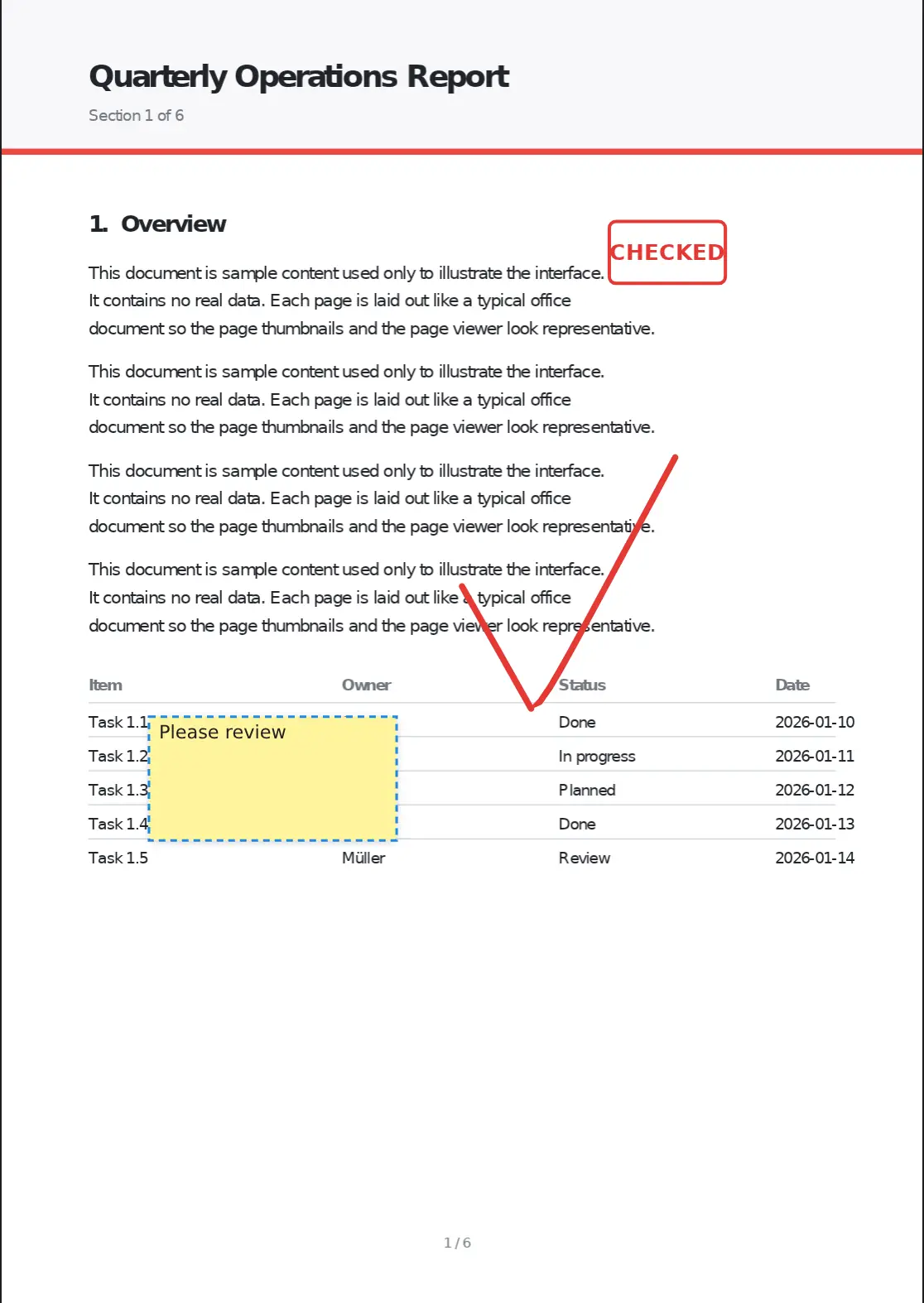
- Click on a page to place a sticky note. It immediately enters edit mode for text input.
- Customise background colour, text colour, font family (sans-serif / serif / monospace), and font size. For background colour, use the 6 presets or the custom colour picker (
+button) to choose any colour. - No background (text only): pick the "No background" swatch (red diagonal slash) at the end of the background row to overlay just the text on the page with no fill or drop shadow. This covers the "I just want to type a label on the page" case. You can also flip an existing note to no-background by selecting it and clicking the same swatch.
- Drag edges or corners to resize. Minimum size is 80 × 40 pt.
Stamps
- Presets come in three categories: approval (Approved, Rejected, Review, …), status (Important, Urgent, Circulate, …), and marks (✓, ✕, ★, …).
- The preset list follows the app's display language (English stamps such as APPROVED / CONFIDENTIAL in English, Japanese stamps when set to Japanese). Symbol stamps (✓, ✕, ★, !, ?) are shared across both languages.
- Once a stamp is placed, its text does not change if you later switch languages — it is saved into the PDF as it was at placement time.
- Each preset has its own colour. The initial box width adjusts automatically to the length of the text.
- With the Select tool, click a stamp, then drag its body to move it or drag an edge/corner to resize. Resizing keeps the aspect ratio fixed and scales the text along with the box (so it behaves like a real rubber stamp).
- The stamp tool stays active so you can place as many stamps as you like in a row (it no longer drops back to Select after each one). Switch to Select (or another tool) in the toolbar when you are done.
Eraser
- Click or drag over ink strokes to delete them.
- Sticky notes and stamps are removed via the Select tool → Delete key, not the eraser.
How annotations are stored
- Annotations are stored separately from the PDF, in a project sidecar file.
- The original PDF bytes are never modified.
- When you use Export to PDF, each annotation is written as a separate PDF annotation object that other viewers (Acrobat, etc.) can select, move, delete, and — for sticky notes — edit the text of:
- Handwriting →
/Inkannotation (movable / deletable; PDF/Inkhas a single width per stroke, so the pen draws at a uniform width both in BarePDF and in the exported PDF) - Sticky note →
/FreeTextannotation (text is editable in Acrobat — useful for back-and-forth review) - Stamp →
/Stampannotation with a baked-in vector appearance (movable / deletable; the text on a placed stamp is not editable after export)
- Handwriting →
- Load a BarePDF-exported PDF back into BarePDF and you can re-edit these annotations (automatic — nothing special to do). Pen, sticky notes, and stamps that BarePDF added become selectable / movable / deletable again (and sticky-note text becomes editable again). This is a safety net for when the original card is gone — opened on another device, browser data cleared, etc.
- Only annotations BarePDF added are lifted back. Annotations added by other tools (Acrobat, etc.) or PDFs not made by BarePDF stay as-is (they are not made editable).
- Note: if you edit a BarePDF-exported PDF in Acrobat and then re-import it, those external changes are reverted (BarePDF trusts the original data it embedded). When you can still open the original card, that path is more reliable.