
Getting Started
This page introduces the very first steps for using BarePDF.
Launching BarePDF
BarePDF runs entirely in your browser. Just open:
No installation, no account, no upload. Your PDF files stay on your device.
The Desk
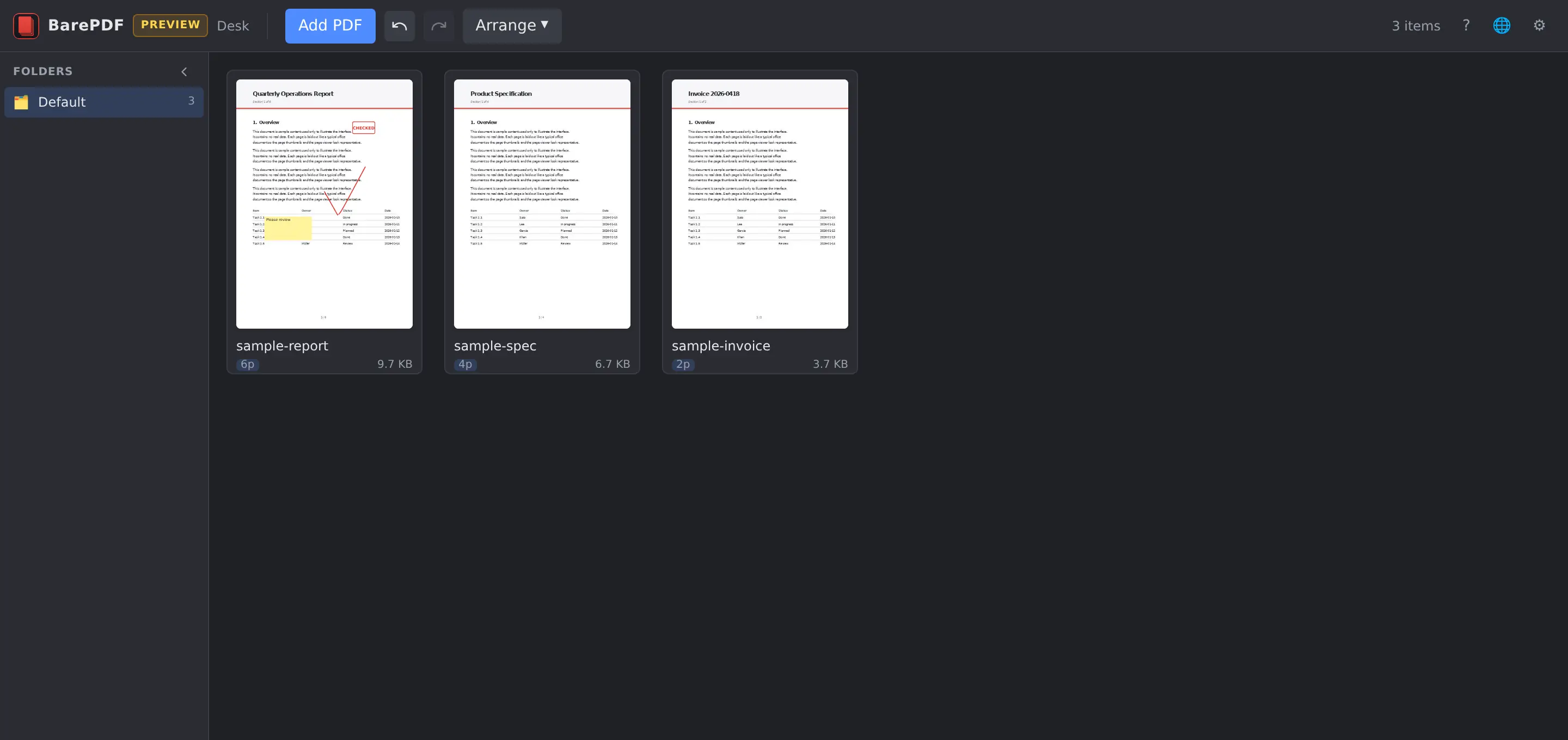
When you open BarePDF, you land on the Desk. The Desk is a free-form canvas where each PDF is shown as a card.
- Add a PDF: drag a
.pdffile onto the Desk, or click the Add button to pick a file. - Select a card: single-click. Press F2 to rename the file.
- Open in the Editor: double-click a card.
- Right-click menu: split, duplicate, rotate, rename, export, delete.
The Editor
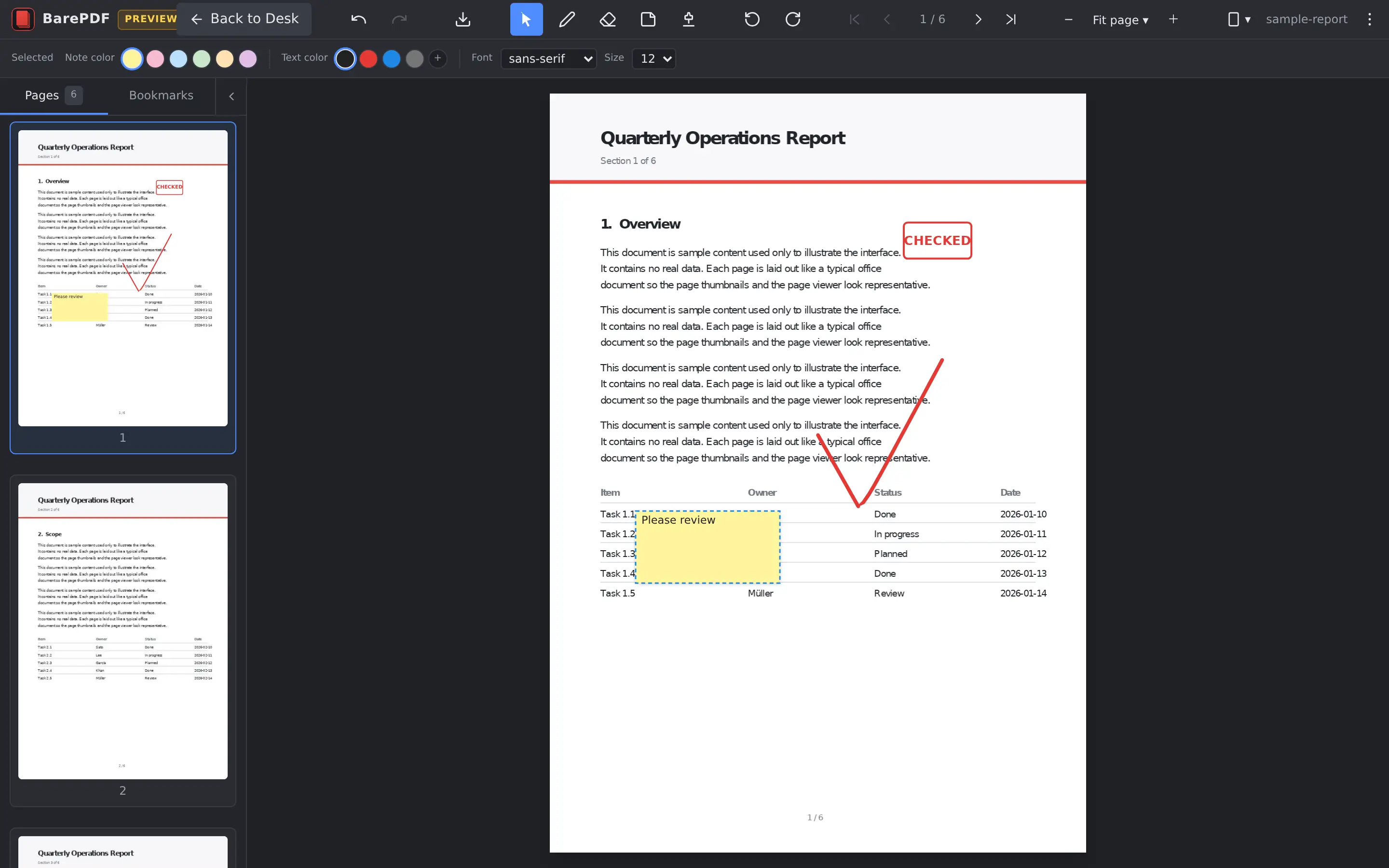
The Editor shows a single PDF with a sidebar on the side and a page viewer in the middle.
- Sidebar: switch between the Pages tab (a list of page thumbnails — drag to reorder) and the Bookmarks tab (if the PDF has bookmarks, click one to jump to that page). Drag the right edge to resize, or use the "‹" button at the right of the tab row to collapse the sidebar and give the page viewer more room.
- Page viewer: zoom, scroll, and switch between single-page and two-page spread layouts. Click links inside the PDF (table-of-contents entries,
https://...URLs) to navigate, with the select tool active. - Annotation tools: handwriting, sticky notes, stamps, and an eraser.
What's next
- Basic Usage — the most common operations.
- Annotations — using the annotation tools.
- Export — saving your work as a PDF.